Running water quality analysis with MIKE ECO Lab in MIKE URBAN
MIKE ECO Lab is a highly flexible framework for defining water quality models. MIKE ECO Lab utilises a concept of templates where water quality models are defined with equations and variables. A MIKE ECO Lab template implements a specific set of water quality related equations.
Note
The MIKE ECO Lab coupling is exclusively available with the MIKE 1D engine.
Water quality modelling in MIKE URBAN is possible by means of a set of four MIKE ECO Lab editors.
- MIKE ECO Lab Templates and Assignments
- MIKE ECO Lab State Variables
- MIKE ECO Lab Constants
- MIKE ECO Lab Forcing
In the following a description of the procedure to run a Water Quality analysis in MIKE 1D is presented.
The MIKE ECO Lab template must be imported to the database through the ECO Lab Templates and Assignments editor. In the editor the template can be loaded through the ECO Lab name field. Once the template is located, clicking on the Import button will transfer all relevant information about state variables, forcings and coefficients to the database.
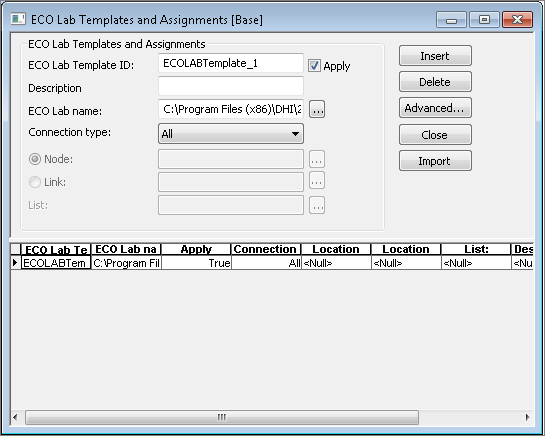
Figure: Importing a MIKE ECO Lab template in the ECO Lab Templates and Assignments editor.
The template can be connected to the hydrodynamic model through nodes or links. The usual options to connect the database are available, all elements, a single link/node or a selection of links/nodes. The Apply check box can be used to disable the template.
While importing a template warnings can be issued indicating the need to change or adjust parameters after importing the template. See the examples below.
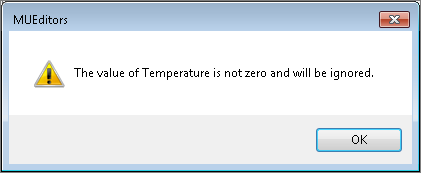
Figure: A warning issued while importing a template, indicating a parameter that needs adjustment.
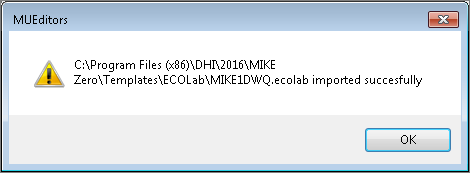
Figure: Confirmation that the template file was imported successfully.
With the template properly imported then is necessary to link the ECO Lab State Variables with the AD components (the user is required to create entries for these components in the AD Components editor). Clicking on the ellipses button in the AD Component ID allows the user to link the State Variables to the AD components.
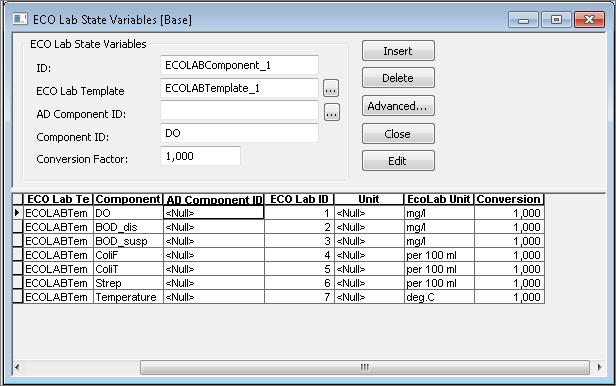
Figure: The ECO Lab State Variables editor before the state variables are linked to AD components.
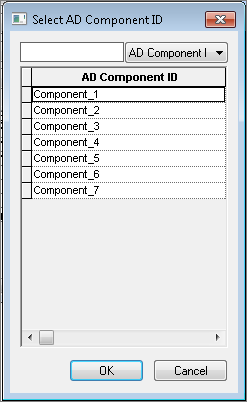
Figure: Selecting an AD component to link to a state variable.
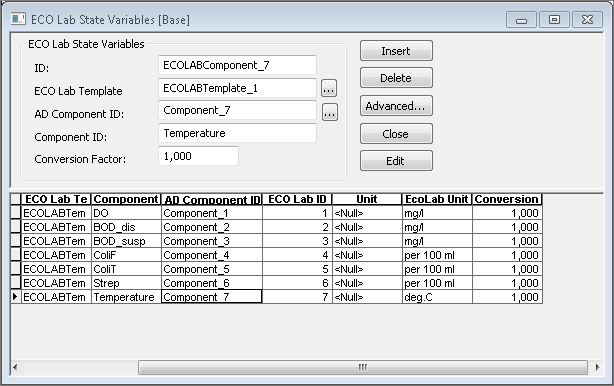
Figure: The ECO Lab State Variables editor with every state variable linked to an AD component.
The initial conditions of each component are defined in the AD Components editors.
In the ECO Lab Constants editor all the coefficients and units defined in the template are presented.
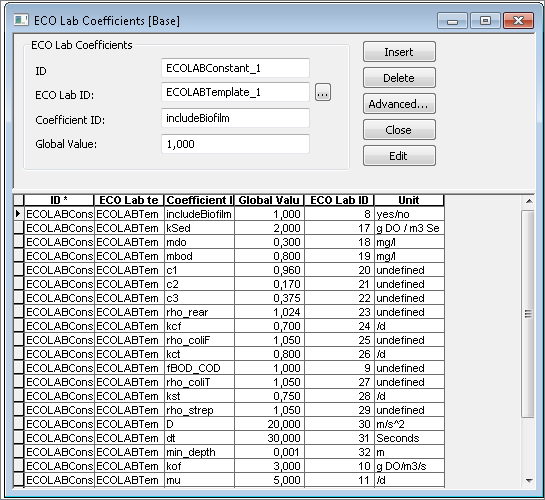
Figure: Template coefficients and units in the ECO Lab Constants editor.
The ECO Lab Forcings are presented in the editor. The forcings are constant or temporal varying external factors.
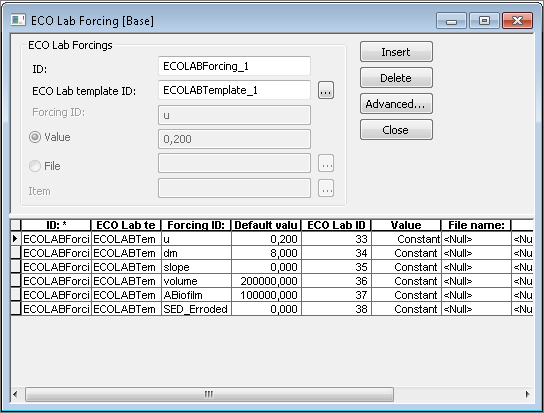
Figure: Constant and time-varying forcings in the ECO Lab Forcing editor.
Once the parameters have been defined appropriately in MIKE URBAN, the user is ready to run a MIKE 1D Water Quality analysis simulation. In the simulation editor choose MIKE 1D engine as the simulation engine (the old MOUSE engine does not support MIKE ECO Lab analysis), go to the Network parameters tab and in the Pollutants group tick the Transport AD and the ECO Lab checkbox.
In this dialogue the user can choose the integration method to run the MIKE ECO Lab simulation. The default method is EULER, but the user can choose between Runge-Kutta, Runge-Kutta Quality Control and EULER. For further information about these numerical integration methods, please refer to the MIKE Zero ECO Lab documentation.
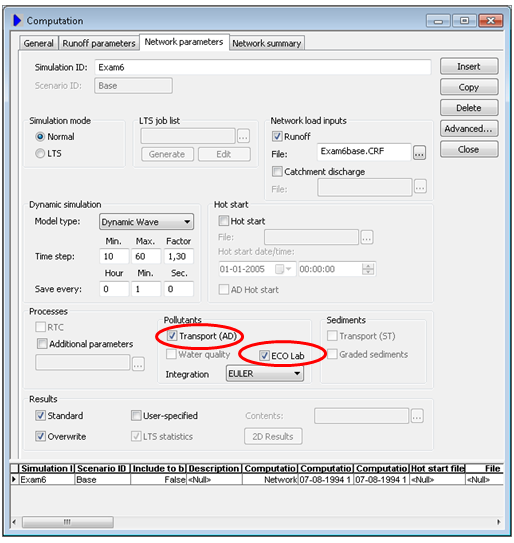
Figure: Enabling Transport (AD) and ECO Lab and choosing the integration method.