Running the MIKE 1D engine in MIKE URBAN
On the simulation dialogue for MOUSE, you will see an option for choosing between MOUSE and MIKE 1D. Changing the radio button to MIKE 1D will launch the MIKE 1D engine when you press Start simulation.
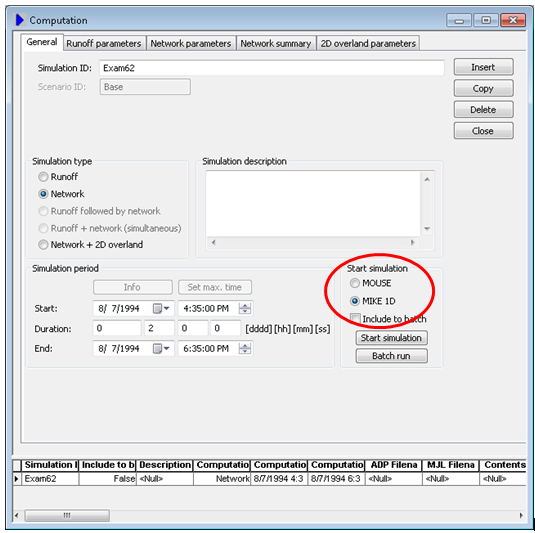
Figure: Choosing the MIKE 1D engine on the MOUSE simulation dialogue.
During the simulation a MIKE 1D Simulation Launcher is shown, like the MOUSE Simulation Launcher. The MIKE 1D Simulation Launcher contains similar information but looks slightly different (see the MIKE 1D Simulation Launcher). The biggest difference is that the panel at the bottom of the launcher will show information, warnings, and errors during the simulation. Warnings and errors are also written to a log-file.
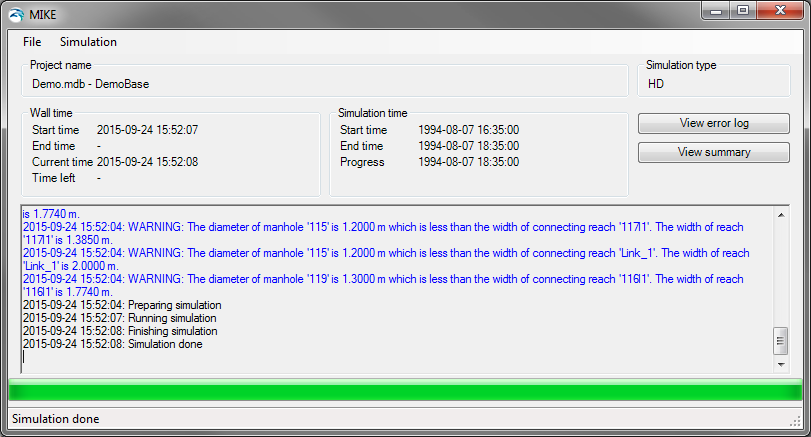
Figure: The MIKE 1D Simulation Launcher, with information, warnings and errors in the bottom panel.
Under the menu File > Load Simulation or File > Load Simulation from GDB folder it is possible to load a database and rerun a simulation. If several simulation parameters exist in the selected database, the latest run simulation will be re-run.
Note
The simulation will run on the data saved in the database. This means that if the database is currently open in MIKE URBAN it will only reflect the current settings if you have exited edit mode or manually saved your data.
The MIKE 1D engine will use data directly from the MIKE URBAN database hence no MEX-file will be created during a MIKE 1D simulation.